Eighth generation
Last time (
Seventh Generation) we used
Attached Properties to enable sorting within
XAML. An alternative, but similar approach is
Behaviors (
Blend for VS2013,
Working with Behaviors) from Expression Blend.
To
create a custom Behavior (
VS2013) the
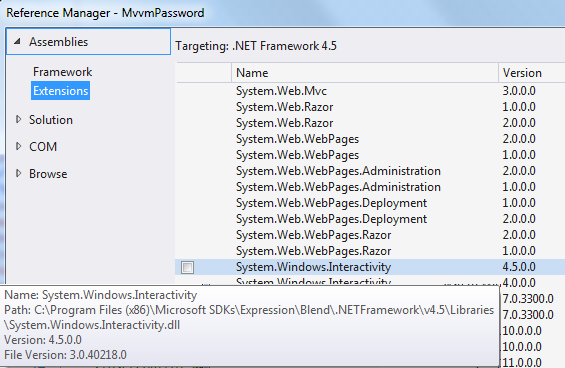
Behavior class is extended. Therefore we need to add a Reference to the Extension Assembly
System.Windows.Interactivity from
Blend SDK (
for VS2013). To extend the
Behavior<T> "using
System.Windows.Interactivity" is added.
SortingAttached (
Seventh Generation) is replaced by SortingBehavior. This leads to a reduction of code:
public class SortingBehavior : Behavior<ListView>
{
    private Sorting _sorting;

    public SortingBehavior()
    {
        _sorting = new Sorting();
    }

    protected override void OnAttached()
    {
        AssociatedObject.AddHandler(GridViewColumnHeader.ClickEvent,
                        new RoutedEventHandler(OnColumnHeaderClicked));
    }

    protected override void OnDetaching()
    {
        AssociatedObject.RemoveHandler(GridViewColumnHeader.ClickEvent,
                        new RoutedEventHandler(OnColumnHeaderClicked));
    }

    private void OnColumnHeaderClicked(object sender, RoutedEventArgs e)
    {
        ListView listView = sender as ListView;
        if (listView == null)
        {
            return;
        }

        _sorting.Sort(e.OriginalSource, listView.Items);
    }
}
There is no need to introduce a
DependencyProperty. Instead we have the overridden methods OnAttached and OnDetaching. These methods add or remove the event handler (OnColumnHeaderClicked) that is executed if the column header is clicked. The method OnColumnHeaderClicked is nearly the same as in the
Seventh Generation, but we do not need explicitly create and remember a Sorting object, because each
ListView gets its own SortingBehavior object, where in the last sample (
Seventh Generation) all
ListViews have used the identical SortingAttached object.
In the
XAML part of the View we need to add the namespace that leads to
System.Windows.Interactivity from
Blend SDK (
for VS2013).
xmlns:i="http://schemas.microsoft.com/expression/2010/interactivity"
Furthermore we remove the
Attached Property and set the Behavior.
<ListView x:Name="EighthResultData"
          ItemsSource="{Binding EighthResultData}">
    <i:Interaction.Behaviors>
        <sort:SortingBehavior />
    </i:Interaction.Behaviors>
    <ListView.View>
        <GridView>
            <GridViewColumn DisplayMemberBinding="{Binding ResultNumber}">
                <GridViewColumnHeader Content="Number"
                                      Padding="2,0,20,0"
                                      HorizontalContentAlignment="Left" />
            </GridViewColumn>
            <GridViewColumn DisplayMemberBinding="{Binding ResultOutput}">
                <GridViewColumnHeader Content="Output"
                                      Padding="2,0,20,0"
                                      HorizontalContentAlignment="Left" />
            </GridViewColumn>
        </GridView>
    </ListView.View>
</ListView>
The source code can be downloaded from
https://code.msdn.microsoft.com/Sorting-a-WPF-ListView-by-7e9c5e4a
Further Posts
- Sorting a WPF ListView/GridView by clicking on the header
- Sort Direction Indicators
- Sort in ViewModel
- Sort Direction Indicators with Adorners
- Reusability
- More Reusability
- Attached Property
- Behaviors (Expression Blend)